When Wi-Fi drops, the tiny button on the router looks tempting. But restarting and factory resetting are as different as taking a short break and setting everything up again. Read the label before creating a new household reconnection project.
We checked official Google Nest, Google Wifi and TP-Link guidance on November 8, 2026. The timings below are product-specific examples, not a universal router standard.
Key points
- Restarting and factory resetting differ in whether settings are erased.
- Distinguish power from Reset, but follow your model manual for actions and timing.
- Record settings and prepare for setup before a factory reset.

1. Slow internet does not mean press Reset
Google says restarting can resolve some common issues. For its Wifi devices, it describes unplugging power, waiting 10–20 seconds, reconnecting and allowing 1–2 minutes to start. Your model's instructions take priority, and connectivity will briefly stop. Google restart guidance
A factory reset instead erases settings and requires setup again. Google says the router and points must be configured afterward. The word “again” hides a very different outcome. What factory reset does
2. Is the small button the power switch?
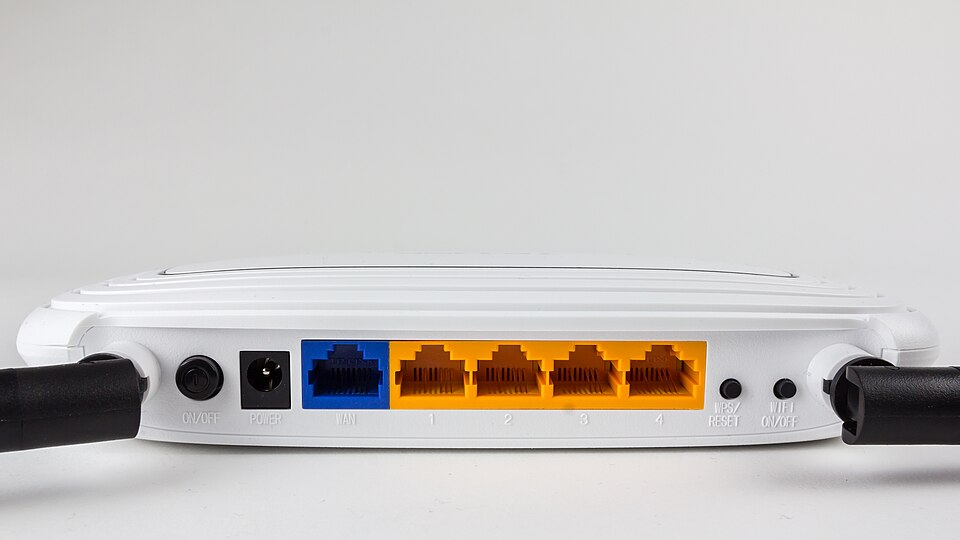
TP-Link describes holding Reset as a factory-reset action followed by reconfiguration. The photograph shows separate On/Off and WPS/Reset labels. Do not use a photograph as a timing instruction: find the manual for the exact model and hardware version. TP-Link reset guidance
The administrator login password and Wi-Fi password also serve different purposes. If your phone connects but you cannot enter the management page, do not automatically call it an internet outage. The two passwords
3. Choose the action you need
This is an editorial decision table, not a conclusive diagnosis or a promise that restarting will fix the connection.
| Situation | Check first | Next action |
|---|---|---|
| Temporarily unstable connection | Model-specific restart steps and ongoing work | Consider a restart, distinguished from reset |
| Only administrator login fails | Administrator or Wi-Fi password? | Read the model's account-recovery guidance |
| Giving it away or starting setup afresh | Recorded settings and readiness to configure | Follow the official factory-reset process |
Google advises noting the network name, password and custom settings before a reset. For provider-owned or shared equipment, checking with the administrator first is sensible. What to record beforehand
4. A 30-second check before pressing
- Read the model label and distinguish power from Reset.
- Check with other users for calls or uploads that a restart would interrupt.
- If the problem persists, record symptoms, indicator lights and attempt times for the maker or provider.
Hypothetical example: If both the living-room TV and phone disconnect, read the restart section of the manual before wiping settings. An error in one app alone cannot prove router failure. Remember to decide whether you want to retain or erase settings, rather than memorizing a long button press.